
Growing your LinkedIn network can increase your exposure to relevant professionals, opportunities, and industry conversations. However, network size alone does not guarantee leads, job offers, or authority. The objective is to build a relevant network of people who are likely to recognise, trust, and engage with your work.
But hitting the "Connect" button randomly doesn't work anymore.
LinkedIn has changed.
People ignore generic requests. Even worse, LinkedIn now restricts how many people you can add.
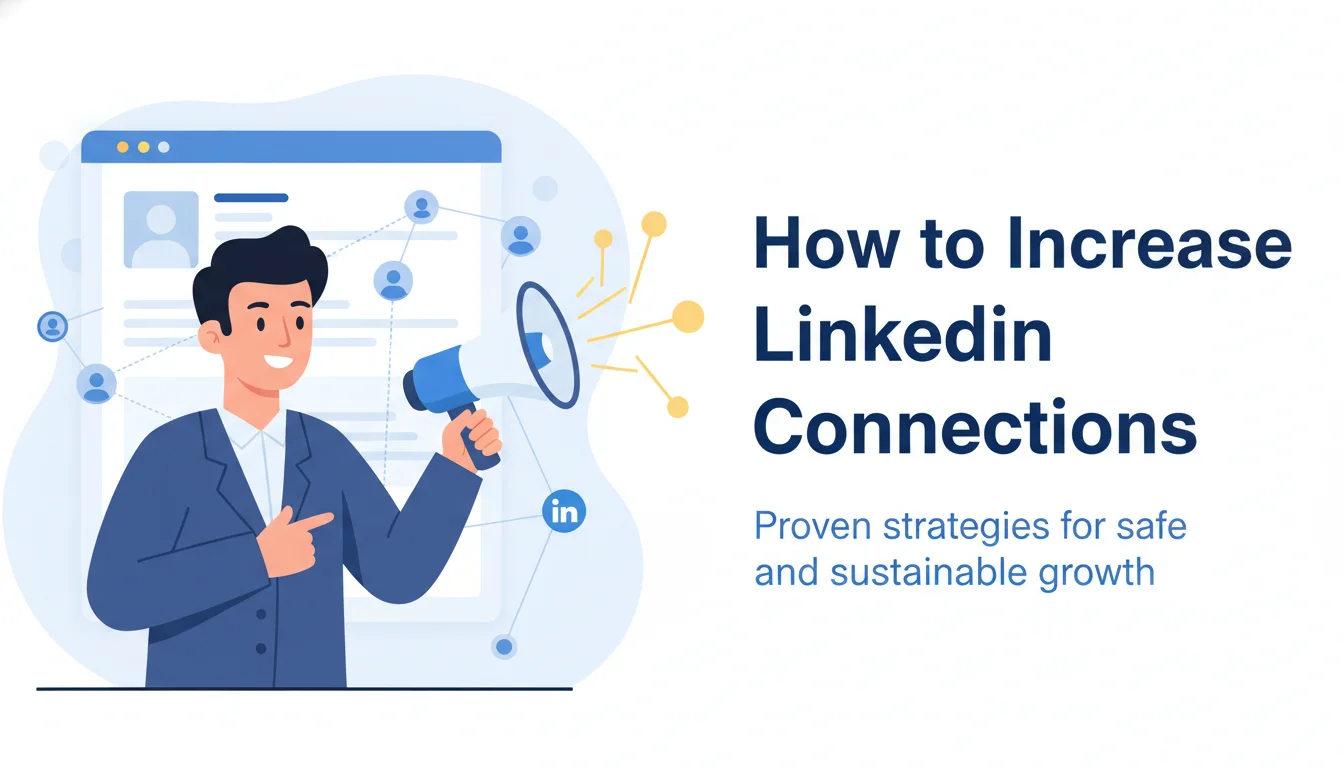
Here is the no-fluff guide on how to increase LinkedIn connections the right way. We will cover the safety limits, the scripts that actually get accepted, and how to turn your profile into a magnet.
First: Know the Speed Limit
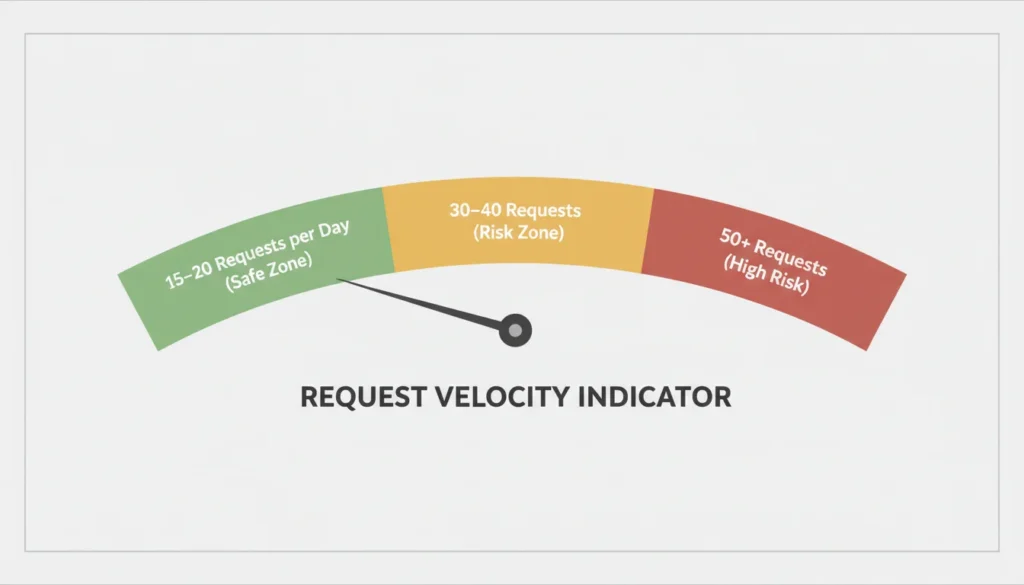
Before you start sending invites, you need to know the rules.
LinkedIn applies invitation limits to all members, including Basic and Premium users. It does not publish one universal weekly number because limits can vary. If you reach your account’s invitation limit, LinkedIn may temporarily restrict you from sending invitations, typically for about one week.
If you try to send 500 requests in a day using automation tools, you will get flagged. You might even lose your account.
The Safe Growth Protocol:
Manual is best. Hand-typing requests creates natural pauses.
Don't sprint. Do not treat any fixed daily number as a safety guarantee. Send only relevant invitations at a pace you can review manually.Fewer, more relevant invitations are safer than high-volume outreach.
Withdraw old invites. Review outstanding invitations periodically and withdraw requests that are no longer relevant. LinkedIn invitations expire after six months. If you withdraw an invitation, you will not be able to send another invitation to the same member for up to three weeks.LinkedIn does not publish an account-score penalty for an invitation remaining pending for three weeks.
The Hidden Metric: Your SSI Score
Most people do not know that LinkedIn grades you. They assign every account a "Social Selling Index" (SSI) score out of 100. It is a score from 0 to 100 that measures social-selling activity across four areas: establishing a professional brand, finding the right people, engaging with insights, and building relationships.It can help sales professionals review their LinkedIn activity, but it is not an account-health credit score. LinkedIn does not state that a particular SSI score increases invitation limits or prevents account restrictions.
Why Does This Matter?
Your SSI score directly affects how LinkedIn treats your activity:
Low SSI score (below 30):
LinkedIn flags your activity as spam-like, limiting reach and increasing the risk of account restrictions, even after sending as few as 10 connection requests.
High SSI score (above 70):
LinkedIn trusts your account. Profiles with strong SSI scores can send more connection requests and engage freely without triggering spam filters.
How to Check Your SSI Score
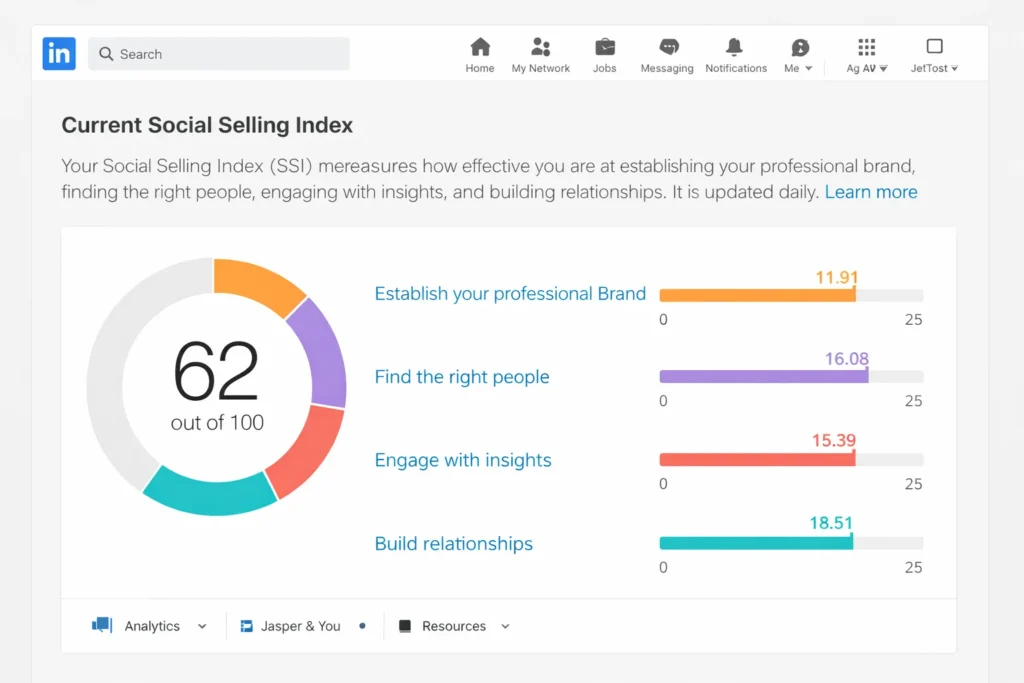
You can see your score for free at linkedin.com/sales/ssi.
If your score is low, do not panic. You can raise it by filling out every section of your profile and engaging with news feed posts before you start sending mass connection requests.
Step 1: Fix Your Landing Page (Your Profile)
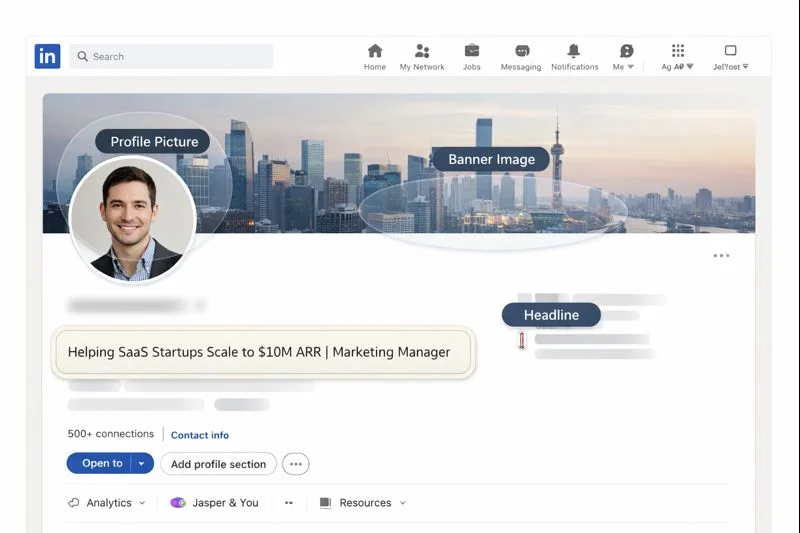
Nobody accepts a connection request from a ghost, which is why optimizing your LinkedIn profile is your first step. If your profile has no photo and a vague headline, people will ignore you.
Think of your profile as a landing page. Its only job is to get the visitor to trust you.
Add a professional headshot showing your face clearly against a simple background. Choose your profile-viewing setting according to your objective. Showing your name and headline allows members to identify you when you view their profile and may encourage a return visit. Private Mode protects your identity when researching profiles, but the person will not see your name or profile information. Neither setting guarantees a connection request.
Craft a custom banner image that reinforces your expertise, like a tagline or visual of your niche. Include skills endorsements and rich media such as project case studies or video intros to boost credibility instantly.
These tweaks can double your profile's effectiveness in converting visitors to connections.
The Headline
Do not just list your job title; focus on writing a compelling headline to showcase the outcome you provide.
Boring: Marketing Manager at TechCorp.
Better: Helping SaaS Startups Scale to $10M ARR | Marketing Manager.
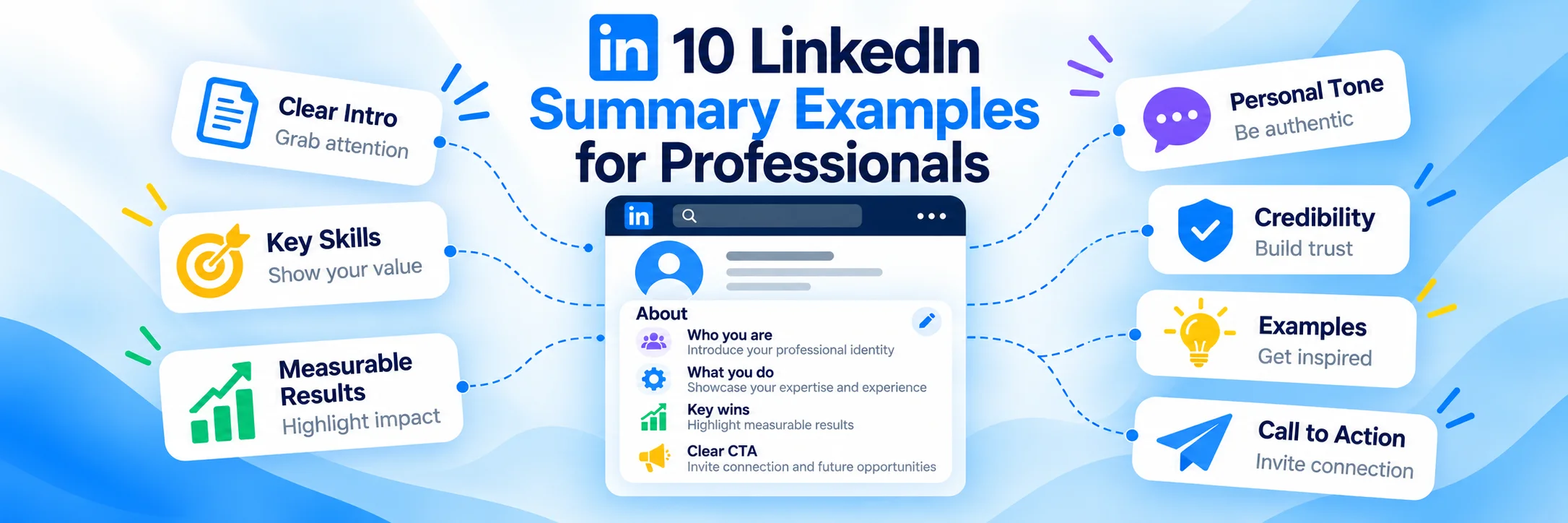
The "About" Section Formula
Most people treat this section like a CV, forgetting that your profile is more important than your resume for building relationships. That is a mistake.
Use the "Hero's Journey" framework to keep them reading.
The Struggle: Start with a problem you faced or a problem your industry faces.
The Change: What did you learn? What shifted your perspective?
The Solution: How do you help people now?
The Proof: Mention a few wins or metrics.
If you struggle to write about yourself, you might need help with professional LinkedIn branding to get the tone right.
The Setting You Must Change Immediately
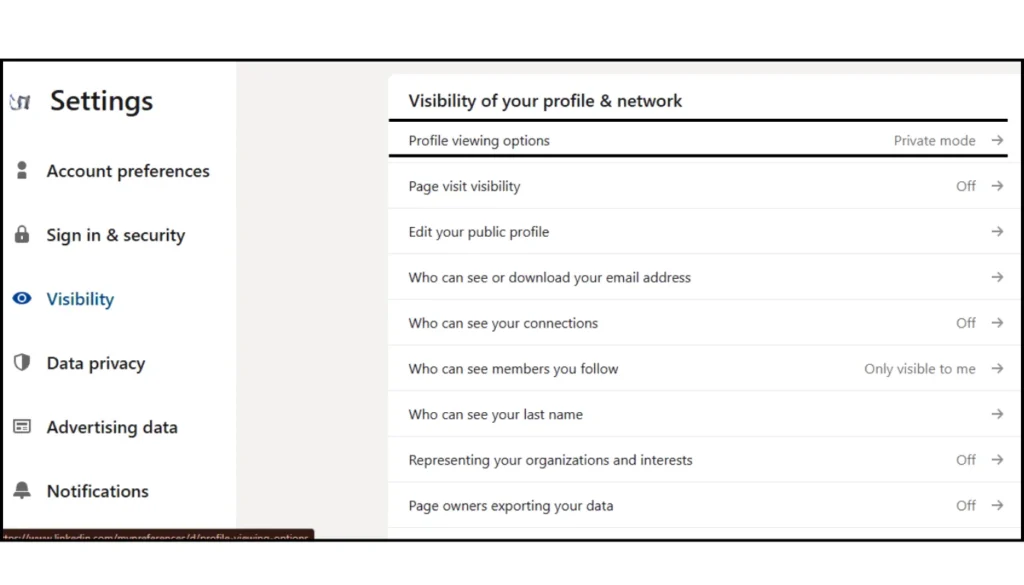
Go "Public"
When you view someone else’s profile, you want them to know. It triggers curiosity ("Who is this person?").
Go to Settings & Privacy > Visibility.
Ensure "Profile viewing options" is set to Your Name and Headline.
If you browse in "Private Mode," you are invisible. You lose the chance for them to click back to your profile and send you a request.
Step 2: The "Warm" Outreach Strategy
Cold connecting is hard. Warm connecting is easy.
If you want to reach people outside your network, learn how LinkedIn InMail works before using it for outreach.
A ''warm'' prospect is someone with a relevant point of context, such as a shared university, event, industry, mutual connection, group, or professional interest. This context can make an invitation easier to understand and evaluate, but acceptance rates vary by audience, profile credibility, timing, and message quality.
Here is where to find them.
The Alumni Tool
This is the hidden gem of LinkedIn.
Go to the search bar.
Type in your University or High School.
Click the "Alumni" tab.
Filter by where they live or what company they work for.
The Sniper Method: Using Boolean Search
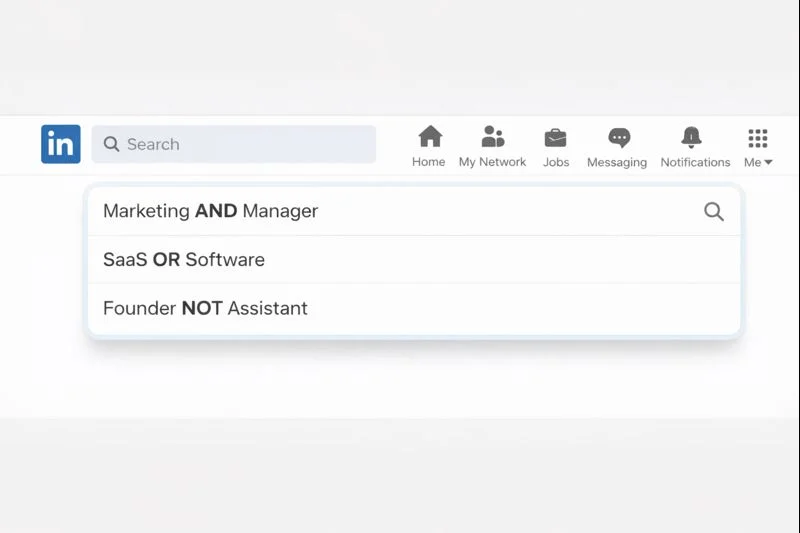
Basic search filters are often too broad. To find the exact decision-makers you need, use LinkedIn Boolean search operators directly in the main search bar.
AND
Use this to combine keywords.
Example: "Marketing AND Manager" (Finds profiles with both words).
OR
Use this to broaden your list.
Example: "SaaS OR Software" (Finds profiles with either word).
NOT
Use this to remove irrelevant people. This is the most powerful operator.
Example: "Founder NOT Assistant" (Removes anyone with "Assistant" in their title, even if they work for a Founder).
Quotes
Use quotes to find an exact phrase.
Example: ""Head of Sales"" (Finds that exact title, not just people who have the word "Sales" somewhere).
Event Attendees
LinkedIn Events can provide a relevant networking pool. Where the attendee list is available, open the event and select the Networking tab to view participants. Do not assume every attendee is currently active or interested in connecting. Mention the shared event and a specific topic in your invitation so the request has clear context.
These people are active right now and interested in the same topic as you.
Comment Sections
Look at the big influencers in your niche. Open the comments on their latest post. Find people who left thoughtful comments.
Do not connect with the influencer. Connect with the commenters. They are your peers.
Step 3: Copy-Paste Scripts (The Secret Sauce)
Do not make a note mandatory for every invitation. Basic accounts have a limited number of personalised invitation notes each month, while Premium members have broader access. Check the limit displayed in your account before planning outreach.
Most people are lazy. They send the default "I'd like to add you to my professional network."
Be different. Use these scripts.
Scenario A: The Alumni
"Hi [Name], I noticed we both went to [University Name]. I see you're working in [Industry] now. I’d love to connect and keep up with your journey. Go [Mascot]!"
Scenario B: The Event Peer
"Hi [Name], I saw you're also attending the [Event Name] next week. I’m really interested in the speaker's take on [Topic]. Looking forward to seeing you there!"
Scenario C: The Content Admirer
"Hi [Name], I saw your comment on [Influencer]'s post about SEO. I completely agree with your point about [Specific Detail]. I’d love to connect to see more of your insights."
Step 4: Inbound Growth (Let Them Come to You)
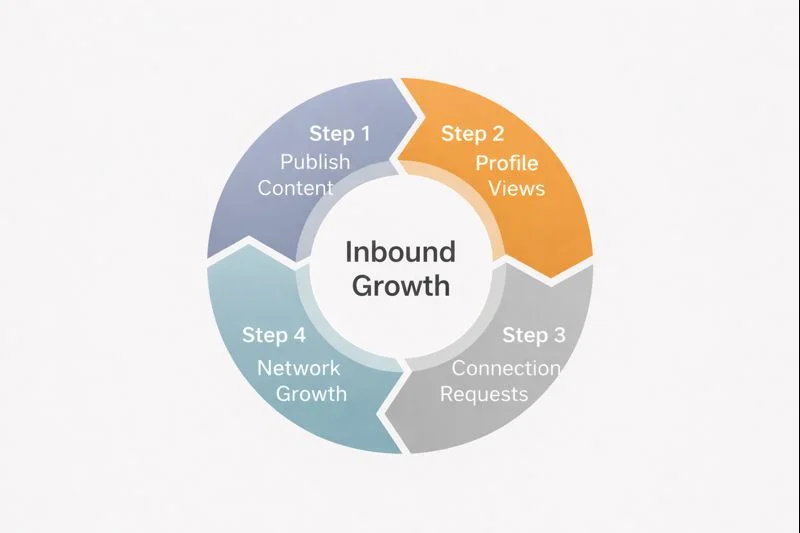
Outbound is great, but a solid LinkedIn marketing strategy focuses on inbound growth to let them come to you.
When you post content, people see it in their feed. If they like it, they send you a connection request. Inbound connection requests may come from people who discover you through posts, comments, searches, mutual connections, events, or profile appearances. These requests can be relevant, but quality should be assessed by professional fit rather than acquisition source.
Choose a sustainable publishing cadence, then use post analytics, profile appearances, and qualified conversations to decide whether to increase or reduce frequency.
You do not need to be a professional writer. Just document your work.
Share a mistake you made this week.
Share a tool you just discovered.
Share a question you have about your industry.
Post 2-3 times a week. Consistency matters more than perfection.
Step 5: Engagement Loops
If you aren't ready to post content yet, start by commenting.
Set a timer for 15 minutes a day. Scroll through your feed. When you see a post relevant to your work, leave a comment. Also, Spend a short period each day engaging with posts where you can contribute something useful.
Your comments are mini-guest posts, they should add value. Avoid low-effort tactics and learn why CFBR-style engagement is not enough for serious LinkedIn growth. Thoughtful comments can make your expertise more visible, but they do not guarantee profile visits or connection requests.
What to Do After They Accept
Thanks for staying with us till here!
Most articles stop here. They tell you how to get the connection, but they do not tell you what to do next.
If you connect and never speak again, you are just collecting digital baseball cards. That does not help your career or business.
Once they accept, send a "Welcome" message. Do not pitch them. Do not try to sell them anything yet.
Try this:
"Thanks for connecting, [Name]! I’m looking forward to seeing more of your work in my feed. Have a great week."
If you are feeling brave, send a voice note. Voice notes on LinkedIn are rare. They stand out. A short voice message can add a personal touch after someone accepts your request, particularly when you already share relevant context. Use it selectively and avoid sending an unsolicited pitch.
LinkedIn voice messages are available through the mobile app for conversations with first-degree connections. They may help you sound more personal, but they do not automatically build more trust than a thoughtful written message.
You cannot rush networking. You cannot build a network of 5,000 people in a weekend (not safely, anyway).
Set a repeatable weekly networking process rather than a guaranteed connection target.
Identify relevant people
Send a manageable number of invitations
Contribute to selected conversations
Follow up with accepted connections
Track invitations sent, acceptance rate, replies, profile appearances, and qualified conversations. Monthly network growth will depend on relevance and acceptance, not only the number of requests sent.
Summary
Learning how to increase LinkedIn connections is not about hacking the algorithm. It is about psychology.
People connect with people they know, like, and trust. Your job is to be likable and trustworthy. Optimize your profile, write personal notes, respect the limits, and engage with their content.
If you are ready to take your professional presence seriously and want a custom plan, contact us today. Let’s get your network working for you.